How it works
How to convert an image to PDF
- 01
Choose images
Drop in JPG and PNG photos, pictures or screenshots; each appears as a thumbnail in page order.
- 02
Arrange & set page size
Drag thumbnails to reorder, then pick fit-to-image, A4, or Letter.
- 03
Download PDF
Your PDF is assembled locally and downloads straight to your device.
To convert an image to PDF, drop it into the box above, or tap the box to pick photos from your phone or computer. Then click Build PDF and Download. That's the whole job for one picture. For several, drop them all in at once: each image becomes one page of the same PDF, and every file shows up as a numbered thumbnail in page order. Drag a thumbnail to move it, or use its arrow buttons if dragging is fiddly, which on a phone it usually is.
JPG and PNG can be mixed freely. The tool reads each file's contents rather than trusting its name, so a photo saved as .jpeg, a screenshot saved as .png and a PNG that somebody renamed to .jpg all go in correctly. Page size is your call: Fit to image (the default) makes every page exactly the size of its picture, so a tall phone photo and a wide screenshot end up as pages of two different shapes. Pick A4 or Letter if the PDF will be printed or has to look like a normal document. Each image is then scaled down to fit the page (never stretched or cropped) and centered, with an optional white margin around it.
Your photos keep their quality, because nothing is recompressed. A JPG goes into the PDF as the same JPG, and a PNG keeps every pixel. That's also why a batch of a dozen photos builds in a second or two: there's no image processing, just your browser putting the files into a document, in a background worker so the page stays responsive.
Already have a PDF and want pictures out of it? Switch the tool to PDF to Images, or go straight to the PDF to JPG converter.
Change a photo to PDF on iPhone
Open this page in Safari, tap the box and choose Photo Library. Pick one picture or several, tap Add, then Build PDF and Download. The PDF lands in the Files app, in Downloads. iPhone photos are HEIC files, but Safari normally hands them over as JPG when you pick them this way. If you have .heic files on a computer instead, use the HEIC to PDF converter. There's also a built-in route: in Photos, select the pictures, tap Share, then Print, and share the print preview as a PDF. It works, but every photo gets fitted onto a paper-sized page with white borders.
Turn a picture into a PDF on Android
This page works the same in Chrome on Android: tap the box, choose your photos, Build PDF, Download. Android can also do it without a website. In Google Photos, open the picture, tap the three-dot menu, then Print, and set the printer to Save as PDF. That's handy for one photo; for several pages in a set order, this tool is quicker.
Convert images to PDF on Windows
Windows 10 and 11 have a printer called Microsoft Print to PDF. Select your images in File Explorer, right-click and choose Print (on Windows 11 it's under Show more options), pick Microsoft Print to PDF, and print. Watch the Fit picture to frame box: it's on by default and crops the edges of your photos. Here nothing gets cropped, and you can set the page order by dragging.
Convert a picture to PDF on a Mac
Select the images in Finder, right-click, and choose Quick Actions, then Create PDF. You get one PDF in the same folder; check the page order before you send it, because you can't drag pages around first the way you can here. Preview can do it too: open the pictures, put the thumbnails in order in the sidebar, then File, Print, and Save as PDF.
When you need this
A form wants a PDF, you have a photo
Job applications, visa portals and school forms often only take PDF uploads. A photo of your ID, a signed page or a certificate goes in as a picture and comes out as the document they asked for.
Photos and screenshots in one file
Insurance claims, support tickets and expense reports usually mix camera photos (JPG) with screenshots (PNG). Drop both kinds in together and they land in one PDF, in whatever order tells the story.
Several pages, one attachment
Photographed a multi-page letter or a stack of receipts? Turn the pictures into one PDF instead of sending ten separate images that arrive out of order.
Archive a project's images together
Screenshots, scans and photos from one project are easier to keep, search and hand over later as one PDF than as a loose folder of mixed files.
Worked example
Say you're preparing a quick product handoff: two PNG graphics and one JPG material photo, already in the order you want to share them. The three files total 5.2 MB.
Drop all three into the box above in any order, the tool doesn't care which format lands first. Drag them into the sequence the handoff should read in, select "Fit to image," and click "Build PDF." In a couple of seconds you'll have one three-page PDF. Because neither format gets re-encoded, the finished file stays close to its 5.2 MB source total; 5.9 MB is normal once the PDF container overhead is added.
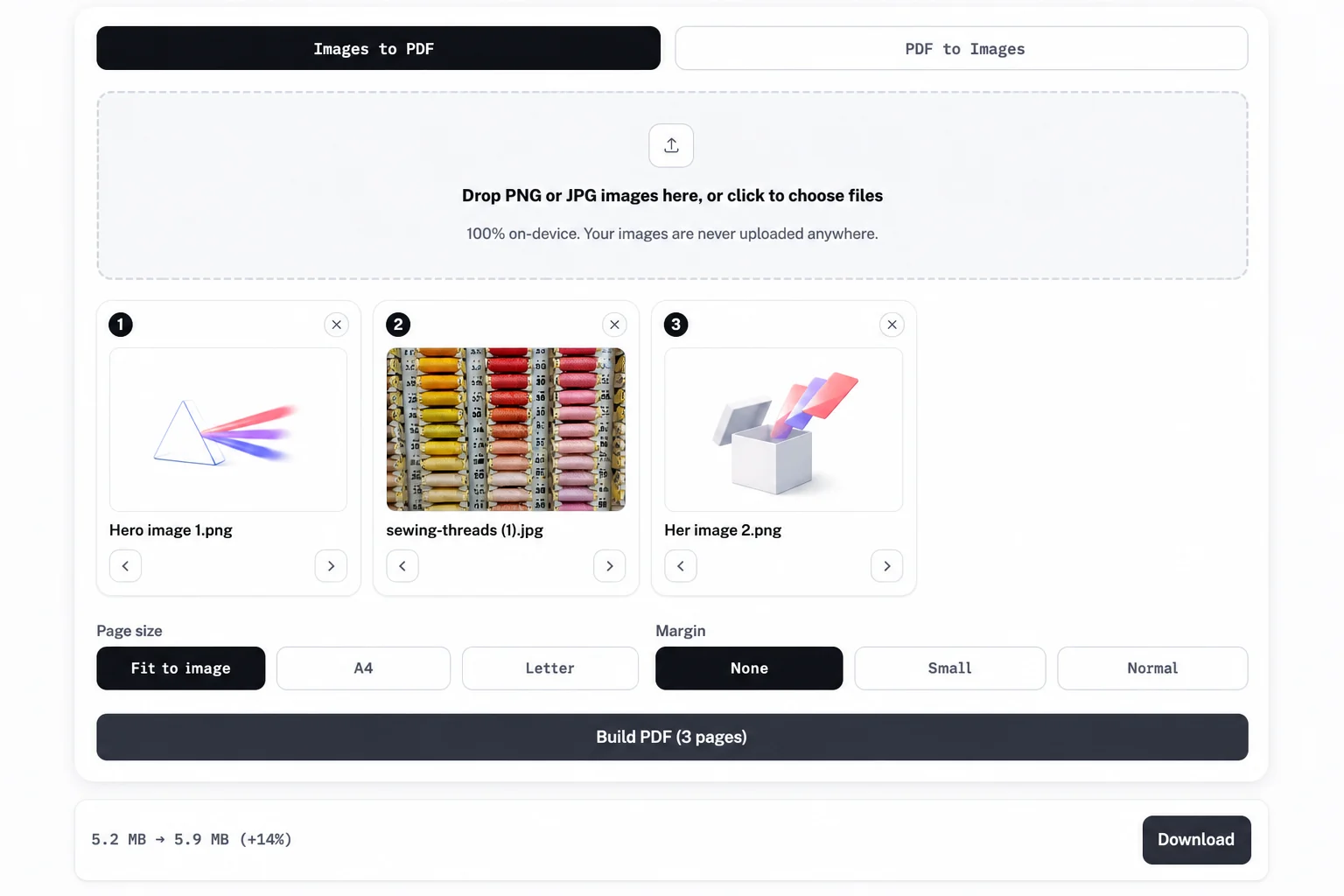
Want every page the same size instead, say for printing? Switch to A4 or Letter before you build, and each image, regardless of its original format, gets centered and scaled down to fit without distortion.
Format explainer
An image file (JPG, PNG) is a grid of pixels. A PDF is a document: pages of a fixed size that can hold text, drawings and pictures, and that look the same on every phone, computer and printer. Turning a picture into a PDF doesn't change the picture, it places it on a page. That's why the PDF comes out about the same size as the images you put in, and why it's just as sharp.
So when should you use which? Keep a photo as a JPG if people will look at it, post it or edit it; every app opens one. Make it a PDF when it's really a document (a receipt, a form, a scanned page), when several pictures have to stay together in order, or when the place you're sending it simply asks for PDF. This page takes JPG and PNG. For other picture formats, use the matching converter in the list near the top of this page: HEIC to PDF for iPhone photos and SVG to PDF for vector graphics.
Frequently asked questions
Drop the image into the box at the top of this page (or tap it to choose a file), then click Build PDF and Download. For several pictures, add them all at once, drag them into order, and you get one PDF with one picture per page. It all happens in your browser.
Open this page in Safari or Chrome, tap the box, pick the photos from your library, then Build PDF and Download. On an iPhone the PDF is saved to the Files app, in Downloads. On Android it goes to your Downloads folder.
Yes, that's what this tool is built for. Every picture you add becomes one page, in the order of the thumbnails. Drag them to change the order before you click Build PDF.
No. Nothing is recompressed: a JPG goes into the PDF as the same JPG and a PNG keeps every pixel. With Fit to image, each page is exactly the size of its picture. With A4 or Letter, large photos are drawn smaller to fit the page, but the full image data is still inside, so zooming in shows the same detail.
JPG (including .jpeg) and PNG, mixed in any combination. iPhone HEIC photos and SVG graphics have their own converters on this site, HEIC to PDF and SVG to PDF. Animated PNGs aren't supported, and the tool will tell you which file is the problem.
No. Reading the files and building the PDF both happen on your device, in a background worker in your browser tab. Your photos never leave it, which matters when they're of ID cards, contracts or receipts.
It's free, with no account and no watermark. There's no set limit on the number of images either; a very large batch is limited only by your device's memory while the PDF is being built.
Related pages
- PNG to PDF converter
Use this instead if every file in your batch is a PNG screenshot or graphic.
- JPG to PDF converter
Use this instead if every file in your batch is already a JPG photo.
- PDF to PNG converter
Use this instead when you need to go the other way, pulling lossless images back out of an existing PDF.
- PDF to JPG converter
Use this instead to pull images back out of a PDF as smaller, compressed JPGs.
- HEIC to PDF converter
Use this instead if your images are iPhone HEIC photos rather than PNG or JPG files.